
Ordering television channels can become a small headache, especially after buying a new TV or retuning DTT. Suddenly, channels appear in different positions, some channels are duplicated, and finding usual programs becomes much more complicated.

However, it is not necessary to call a technician or change your TV to solve this problem. Most current models allow you to modify the channel list from the settings menu and place each channel in the number preferred by the user.
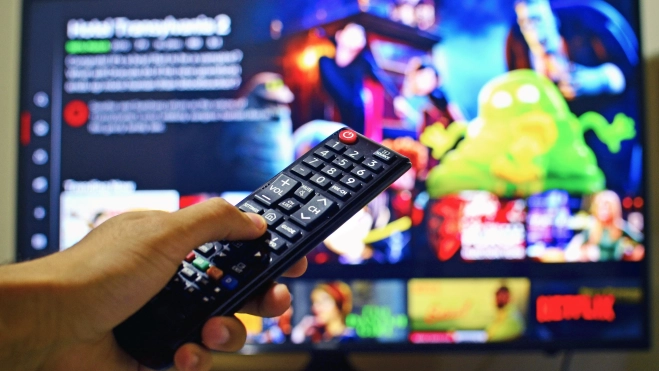
How to order TV channels from the remote control?
Although menus may vary depending on the brand and model, the steps to order channels are usually quite similar. In general, it is enough to access the TV settings and locate the tool that allows editing the program list.
To do this, follow these steps:
- Turn on the TV and check that the external DTT receiver is also connected, if one is used.
- Access the settings menu from the remote control. In many models, it is represented by a house icon or by a button called "Menu".
- Look for the channels section, which may appear as "Channel List", "Channel Settings" or with an antenna symbol.
- Select the editing option, which is usually called "Edit Channels", "Edit Program" or "Channel Manager".
- Choose the channels you want to move and place them in the desired number. Some TVs allow you to directly enter the position, while others offer the possibility of dragging channels.
- Save the changes before exiting the menu so that the new distribution is established.
This procedure serves as a general guide for most TVs, although the names of the options may change. On Smart TVs and models with Android TV, the interface usually facilitates navigation through these settings.
What to do if you cannot change the order of DTT channels?
Sometimes, the television does not allow modifying the position of certain channels. This may be due to the LCN (Logical Channel Numbering) function, an automatic numbering system that organizes channels following an established order. If this option is activated, it may prevent the user from manually changing the position of the channels. To solve this, you have to go into the channel settings and look for the LCN function to check if it is possible to deactivate it. Afterwards, you can return to the program list and try to modify its distribution.
Another common problem is the accumulation of duplicate or disorganized channels after several rescanings. In these cases, an alternative is to perform a new complete channel search and organize only those that are habitually used. In addition, some television models allow saving the channel configuration to a USB memory stick. This option can be especially useful if the television is factory reset or if a previously organized list needs to be recovered.
In this way, organizing television channels does not require extensive technical knowledge. With a few adjustments from the remote control, it is possible to recover a more convenient list and directly access favorite channels.
